

How to Limit Access to Negative Content on YouTube: Tips for Parents
In today's digital age, YouTube has become an integral part of children's lives, offering endless entertainment and educational opportunities. However, alongside its benefits, YouTube poses significant risks due to the presence of inappropriate content. As a parent, ensuring your child’s safety online is paramount. This article provides comprehensive tips for parents on how to limit access to negative content on YouTube, emphasizing the importance of parental control and introducing effective strategies to safeguard your child’s viewing experience.


YouTube is one of the most popular video-sharing platforms globally, attracting billions of users with its vast array of content ranging from educational videos to entertainment and beyond. While YouTube serves as a valuable resource for learning and creativity, it also hosts content that may not be suitable for younger audiences. Parents must be proactive in managing their children's online activities to prevent exposure to harmful material.
Use YouTube Kids - A Separate Safe Version of the Platform
- What is YouTube Kids?
YouTube Kids is a child-friendly version of YouTube designed specifically to provide a safe and controlled environment for younger viewers. It offers a curated selection of content tailored to different age groups, ensuring that children are only exposed to appropriate videos.
- Its Advantages
1. Curated Content: YouTube Kids features content that has been vetted for age-appropriateness, reducing the risk of exposure to violent, explicit, or otherwise unsuitable material.
2. Customizable Profiles: Parents can create individual profiles for each child, setting age-appropriate filters and preferences.
3. Time Limits: The app allows parents to set daily viewing time limits, promoting balanced screen time.
4. No Ads: Unlike the standard YouTube platform, YouTube Kids offers an ad-free experience, minimizing exposure to potentially harmful advertisements.
- How to Set It Up
1. Download the App: Install the YouTube Kids app from the App Store or Google Play Store.
2. Create a Profile: Open the app and create individual profiles for each child, selecting the appropriate age group.
3. Customize Settings: Adjust settings such as content filters, search restrictions, and viewing time limits based on your child's needs.
4. Monitor Usage: Regularly review the app's settings and your child's viewing habits to ensure a safe and enjoyable experience.
Activate Restricted Mode on YouTube
- What is Restricted Mode?
Restricted Mode is an optional setting on YouTube that helps filter out potentially inappropriate content by hiding videos that may contain mature themes, violence, or other unsuitable material. While not foolproof, it adds an extra layer of protection for younger viewers.
- How to Enable
1. Sign In: Log in to your YouTube account.
2. Access Settings: Click on your profile picture in the top right corner and select "Settings."
3. Enable Restricted Mode: Scroll down to the "General" section and toggle the "Restricted Mode" switch to "On."
4. Lock Restricted Mode (Optional): For added security, you can lock Restricted Mode by signing into your and setting a password.
Disable Video Autoplay
- Dangers of Automatic Video Playback
Automatic video playback can inadvertently lead children to unwanted channels or content. When a video ends, another one may start without the child’s intervention, increasing the likelihood of stumbling upon inappropriate material.
- What to Do
1. Open YouTube: Navigate to the YouTube website or app.
2. Find the Autoplay Toggle: On the video player, locate the "Autoplay" switch typically found near the next video preview.
3. Turn Off Autoplay: Click or tap the switch to disable automatic playback.
4. Verify Settings: Ensure the toggle remains off, especially if multiple devices are used for viewing.
Disabling autoplay helps maintain control over what your child watches next, reducing exposure to unintended content.
Block or Hide Individual Channels and Videos
- What to Do if a Child Encounters Unwanted Content
Despite best efforts, children may occasionally come across channels or videos that contain inappropriate content. In such cases, it's crucial to take immediate action to block or hide these sources.
1. Identify the Content: Locate the offending channel or video.
2. Block the Channel:
- On Desktop: Navigate to the channel’s page, click on the "About" tab, and select the flag icon to report or block the channel.
- On Mobile: Use the YouTube app to find the channel, tap the menu icon, and choose to block or report.
3. Hide Specific Video
- Using Restricted Mode: Ensure Restricted Mode is enabled to automatically filter out most unwanted content.
- Parental Control Tools: Utilize specialized tools like Parental Control Kroha to block specific videos and channels. Croha offers advanced features to customize what your child can access, providing a tailored solution for digital safety.
Teach Your Child Information Hygiene
1. Building Dialogue and Trust
Establishing a foundation of open communication is essential in helping your child navigate the digital landscape safely. Encourage regular conversations about their online experiences and educate them on maintaining information hygiene.
2. Key Points to Cover
- Understanding Dangerous Content: Explain what constitutes harmful or inappropriate content and why it should be avoided.
- Handling Provocations: Teach your child not to react to provocations in comments or videos, emphasizing the importance of emotional resilience.
- Reporting Disturbing Content: Instruct them on how to report or seek help if they encounter a disturbing video or inappropriate behavior online.
- Trusted Contacts: Ensure your child knows who to approach—whether it's a parent, teacher, or another trusted adult—if they encounter troubling content.
Fostering a relationship of trust and transparency ensures that your child feels comfortable seeking guidance and support when needed.
Periodically Review the Viewing History
- Staying Informed About Your Child’s Viewing Habits
Regularly reviewing your child’s YouTube history helps you stay aware of the content they are consuming and identify any potential issues early on.
- How to Review Viewing History
1. Access History:
- On Desktop: Click on the menu icon and select "History."
- On Mobile: Go to the library tab and tap on "History."
2. Monitor Activity: Browse through the list of recently watched videos to ensure they align with your family’s values and safety standards.
3. Use Parental Control Tools:
- Tools like Parental Control Kroha provide comprehensive monitoring features, allowing you to track and manage your child’s viewing activity effectively. Kroha’s advanced analytics and reporting capabilities make it easier to maintain a safe digital environment for your child.
Conclusion
In an era where online content is readily accessible, safeguarding your child from negative and inappropriate content on YouTube is more critical than ever. By leveraging tools like YouTube Kids, enabling Restricted Mode, disabling autoplay, and using specialized parental control solutions such as Parental Control Kroha, parents can create a secure and positive online environment for their children. Additionally, fostering open communication and regularly reviewing viewing habits ensure that your child develops healthy digital habits and remains protected from potential online threats. Taking these proactive steps empowers parents to effectively manage their child’s YouTube experience, balancing the benefits of the platform with the necessary safety measures.
By staying informed and engaged, parents can navigate the complexities of digital parenting with confidence, ensuring their children enjoy the enriching aspects of YouTube without compromising their safety.
Recent articles

How to Block TikTok on Your Kid’s Phone? A Guide for Parents
The omnipresence of TikTok in children’s lives has sparked considerable concern among parents and educators alike. Imagine a family where the teenage daughter, Emma, spends hours every day watching TikTok videos, neglecting her studies and social interactions. This real-life scenario underscores the urgent need for parents to manage their children's social media usage responsibly. Understanding the gravity of the situation is the first step toward ensuring a balanced and healthy digital life for your child.

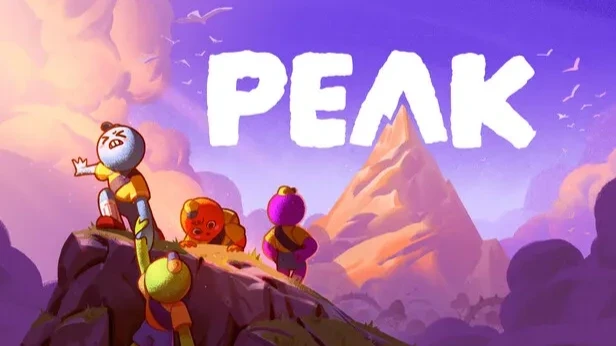
PEAK Game: A Parent’s Guide to Content and Child Suitability
In today’s digital age, video games have become a significant part of children’s lives, offering both entertainment and educational value. However, with the vast array of games available, parents often find themselves questioning which titles are appropriate for their children. One such game making waves in the gaming community is PEAK. This article aims to provide parents with a comprehensive guide to the game and help evaluate whether it is safe and appropriate for children.